Overview
Unreal Metadata Tags Editor
A friendly user interface for editing Unreal asset metadata tags.
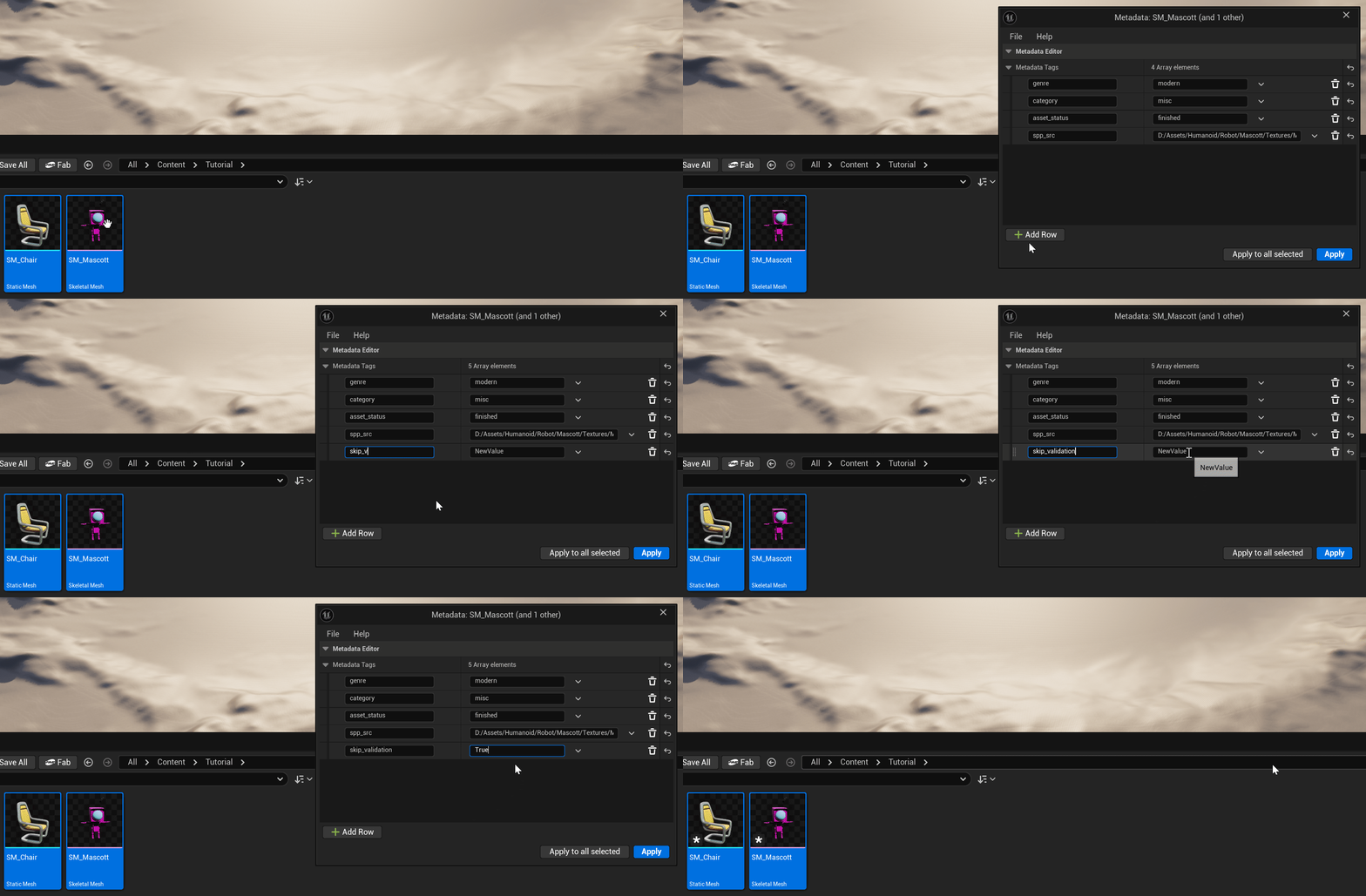
Apply changes to one or more assets at once.
Get it on Fab or on Gumroad!
See it on YouTube!
Watch the demo!
Apply changes to one or more assets at once.
Watch the demo!
You can get Metadata Tags Editor on Fab.
Up-to-date general guide for Working with plugins in Unreal Engine.
Users who are using Source Code distribution from Gumroad will get plugin without prebuilt binaries. Unreal should rebuild them on project startup but if it does not happen, please refer to official tutorial.
If by any reason, you are installing the plugin manually, unpack it to
{PROJECT_DIRECTORY/Plugins}You can also unpack it to you main Unreal installation which is located under
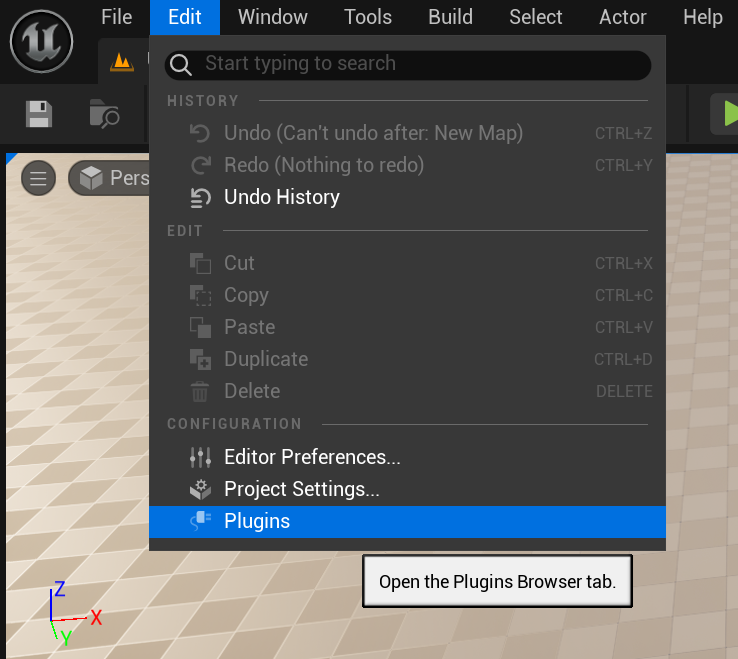
C:\Program Files\Epic Games\UE_[version]\Engine\Plugins on Windows/Users/Shared/Epic Games/UE_[version]/Engine/Plugins on macOSNavigate to editor top bar and open Edit -> Plugins.
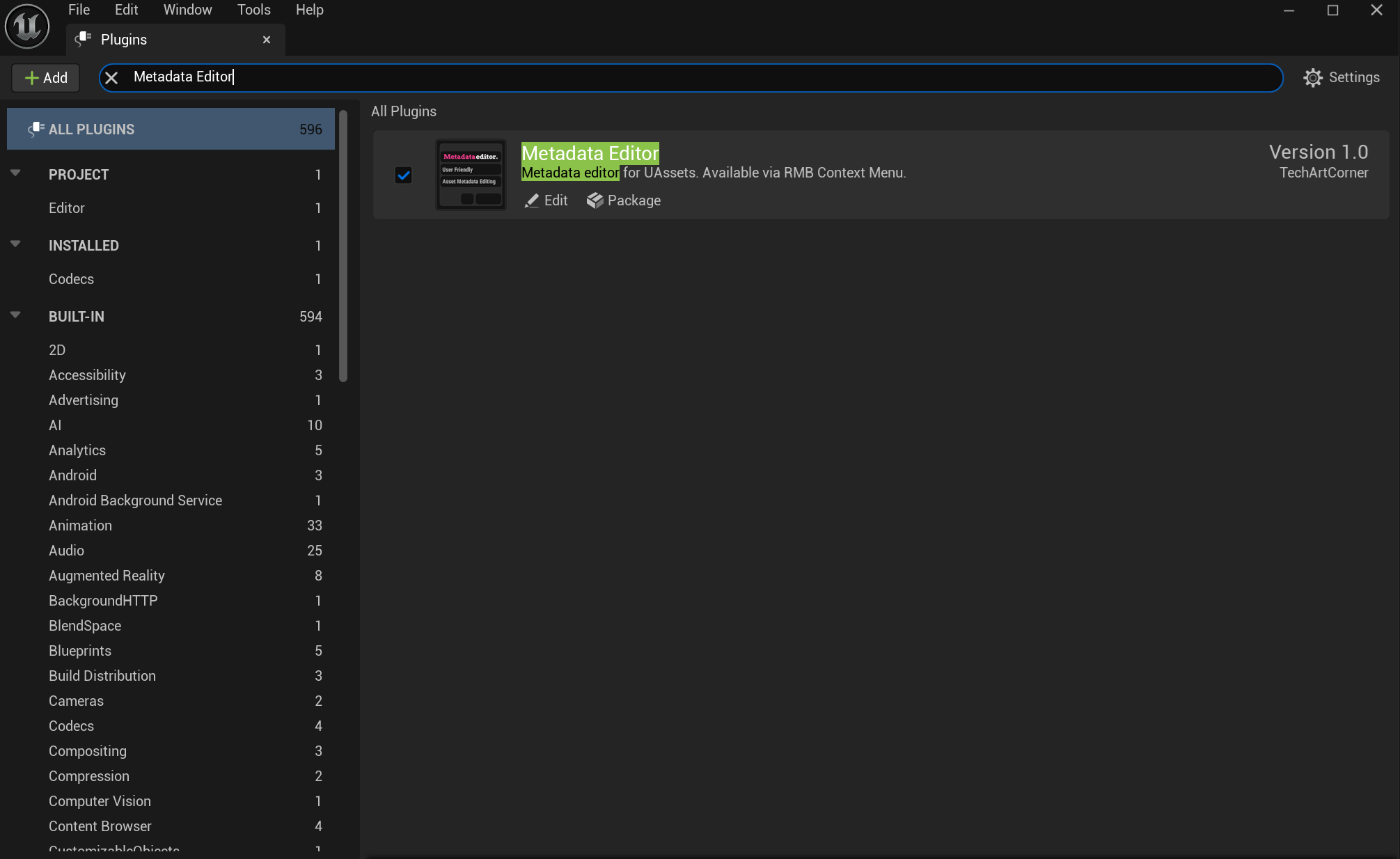
Search for Metadata Editor and toggle the plugin.
Remember to restart Unreal.

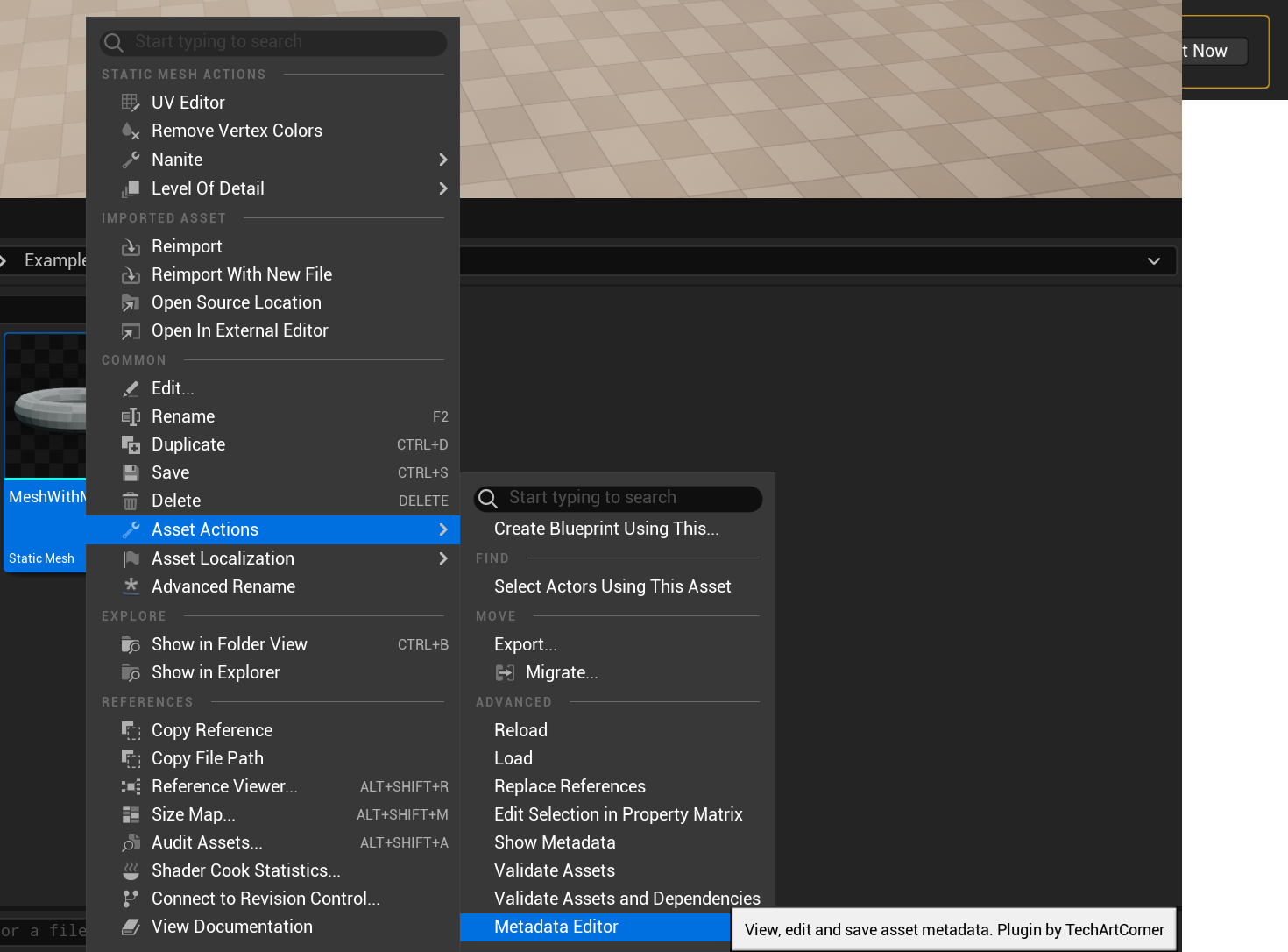
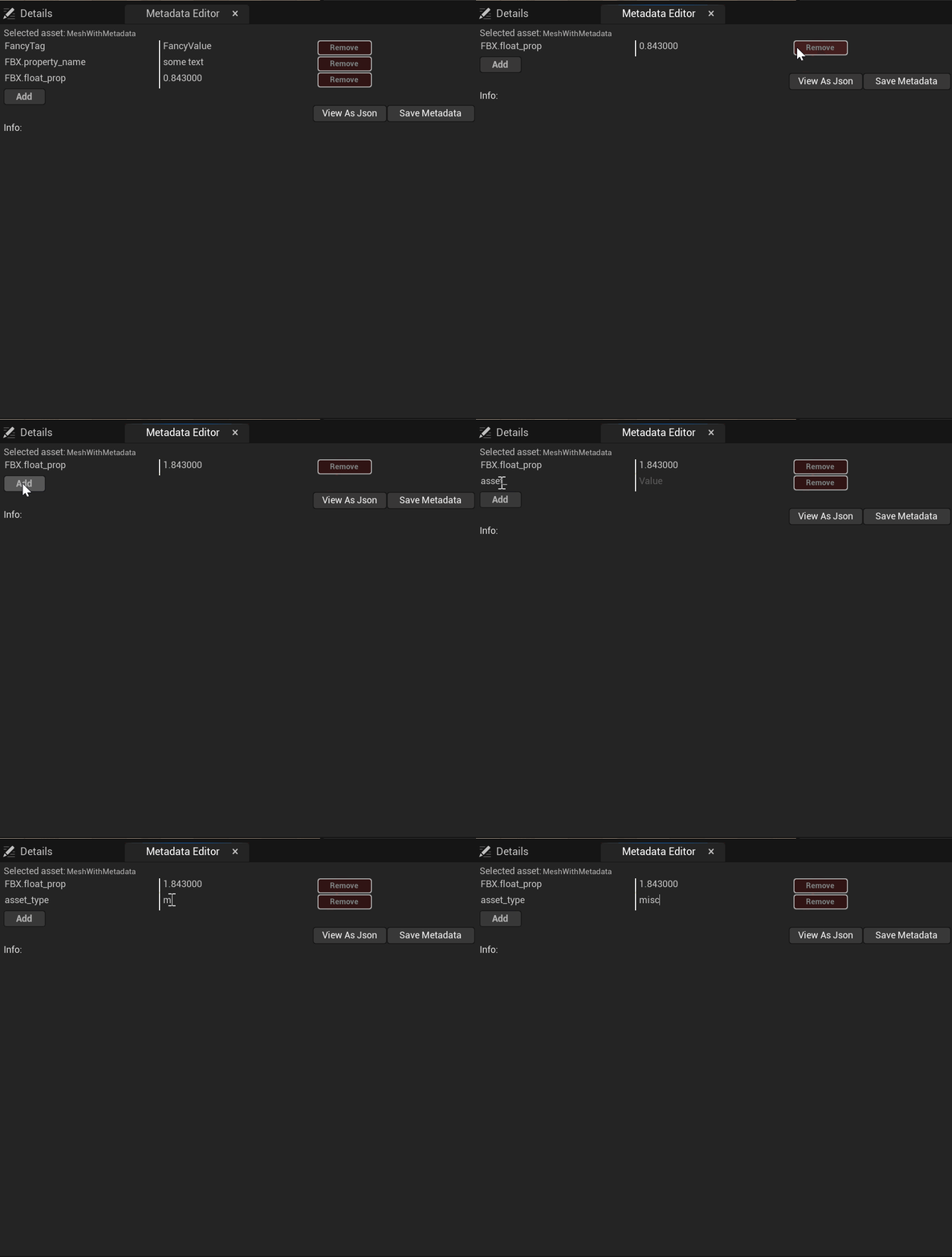
Editor works best with one asset at a time but you can use it to apply same metadata to multiple assets as well.
Add, remove and edit metadata rows as you wish. You changes will only take place if you save them with Apply button.
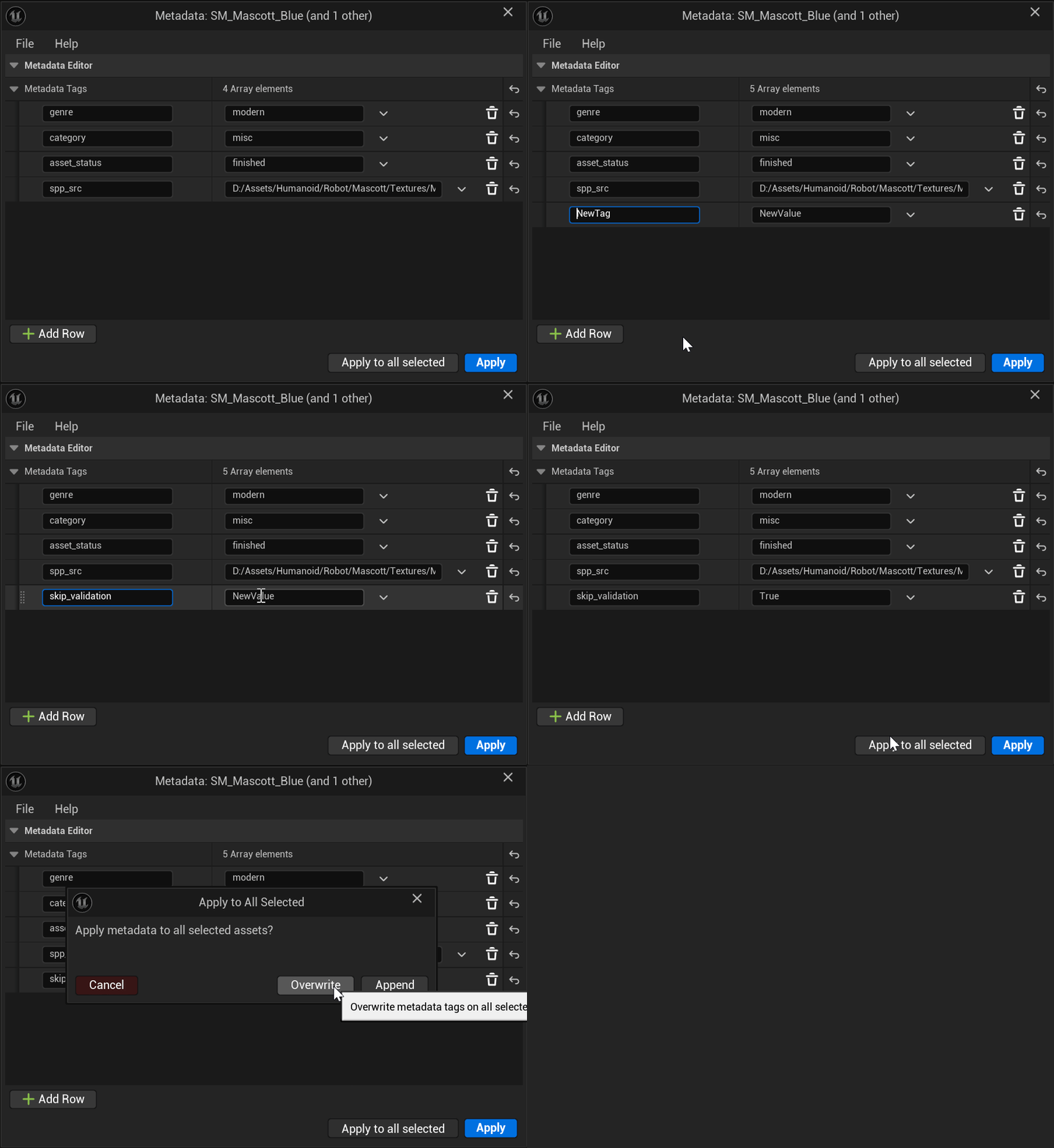
If you selected multiple assets before opening the editor, the editor will show only one main asset in the view.
You can still choose to apply your changes to all selected assets though. Choose one of two modes:
Undo / Redo is fully supported in rows editor. However, setting metadata tags is not undoable. The good news is that all edited assets will be marked as Dirty in the editor and you can always revert the changes by reloading asset from drive or version control system.
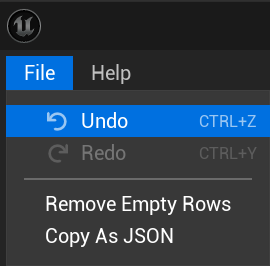
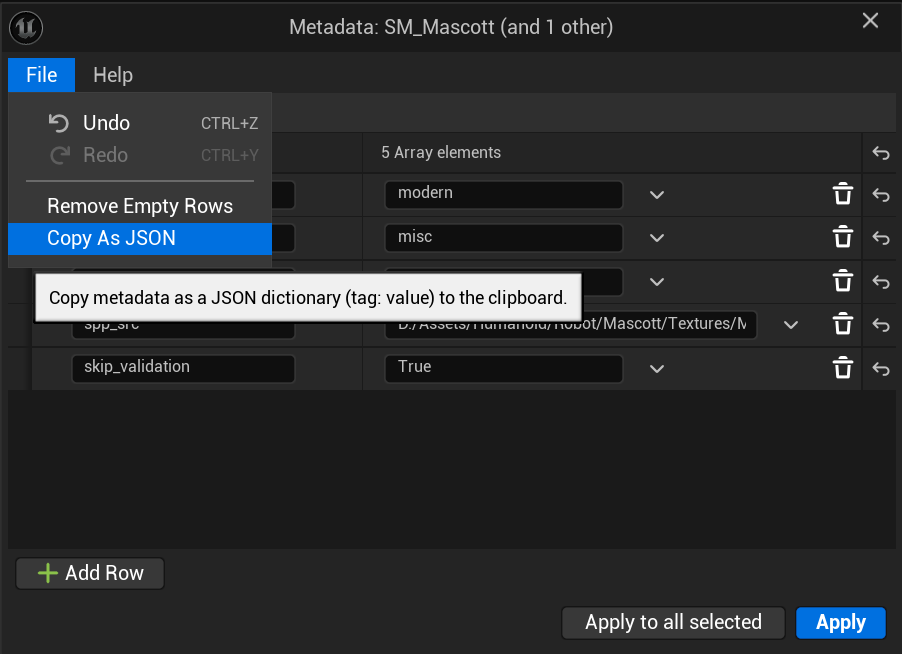
You can copy all tags visible in editor to clipboard as JSON. Pasting is also possible!
Pasting JSON will add new keys and override existing ones but it will not remove already existing keys that are not part of the json. Your changes are safe.
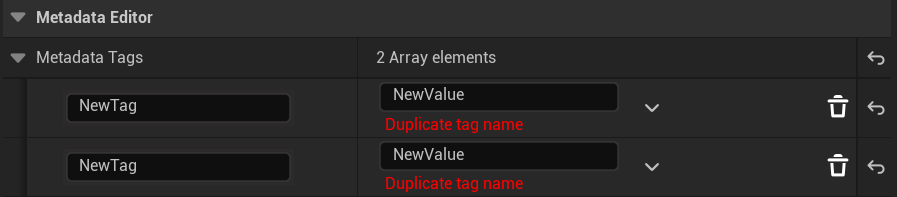
The editor has basic validation that makes sure you don’t:
Basic metadata like asset type, mesh poly count or program of origin can be extremely useful.
Such information, if easily accessible can be a helpful guide for anyone looking for asset that matches (or doesn’t)
certain criteria.
It can help you in daily situations like looking for an author of an asset.
Of course, this case should be already taken cared by a Version Control System but in that case,
it’s the VCS that stores the metadate because metadata can be stored in multiple places - assets itself, VCS systems, external files or databases.
Imagine a situation where all assets exported with Animation Exporter 1.3 are broken.
What if it has been in use for a whole month? What if artists were using different versions of exporter at the same time?
We should be able to find all those broken assets and either re-export them or apply some kind, of a fix.
Supposing that all assets store software of origin, exporter and their versions in metadata, finding broken assets can be automated and done in few minutes even if thera are hundreds of assets to filter.
That may sound like an extreme case, but using metadata to find assets to be processed in such or other way is common and the bigger the project, the more often it will be needed.
Saving metadata is not that hard to implement and can really save your day in such situations.
Some metadata is not primarily meant for describing or finding assets.
Sometimes some helper variable is meant for a tool.
Maybe this variable will decide what kind of settings will be applied after importing.
Or maybe, it will help you distinguish mesh that is being re-imported from a mesh that is being imported for a first time because import system that you are extending does not do it for you
Metadata may not come handy on your first day of work. You may start storing it and forget about it for some time without having a need to use it.
It’s alright.
But it may get really bad when you finally need it but don’t have.
It’s one of those things that are easy to start gathering and don’t require sophisticated solutions at the beginning.
That little extra effort at the beginning can save you a lot of time and money when something goes sideways.\

And you will no longer be irritated by lack of some simple metadata editor that does not require scripting or creating a node graph to just add a simple tag to an asset.
I’m open to feedback and if by any chance, this plugin gets popular, I’m looking forward to making it better.
If you, by any chance are a current or aspiring Technical Artist who is interested in automating even more and making great Unreal tools, I would love to advertise my courses on:
For those who prefer free content, I also have a YouTube Channel which I’m trying to fill with Unreal tutorials.
You can contact me on Discord. It may be easier to use than email and will let us have a more realtime conversation.
Paste JSON
You can now fill Metadata Tags Editor with data from JSON.
Additionally, Ctrl + C and Ctrl + V support was added.
Menu item icons
Added icons to all menu entries.
Applying changes to multiple assets at once is now smarter and will not accidentally overwrite metadata tags.
Overwrite and Append are now replaced by Clear & Overwrite and Smart Apply.
Clear & Overwrite
All assets end up having exactly the same properties as visible in Metadata Tags Editor.
Smart Apply
This feature compares initial metadata tags with what is visible in the editor. The editor knows which tags were added, removed, modified or left unchanged. It will apply only those changes. Thanks to it, a chance of breaking your assets metadata is much lower.
Initial release.